

An envelope is what you send: one or more documents, the people who need to sign them, and the boxes they fill in. This guide walks through sending one from a PDF on your computer.
- 1
Start a new envelope
- Sign in and click New envelope at the top of the left-hand menu.
- Drop your file onto the upload area, or click Upload and choose it. You can add more than one file; they are sent together.
- Click Next: add recipients.
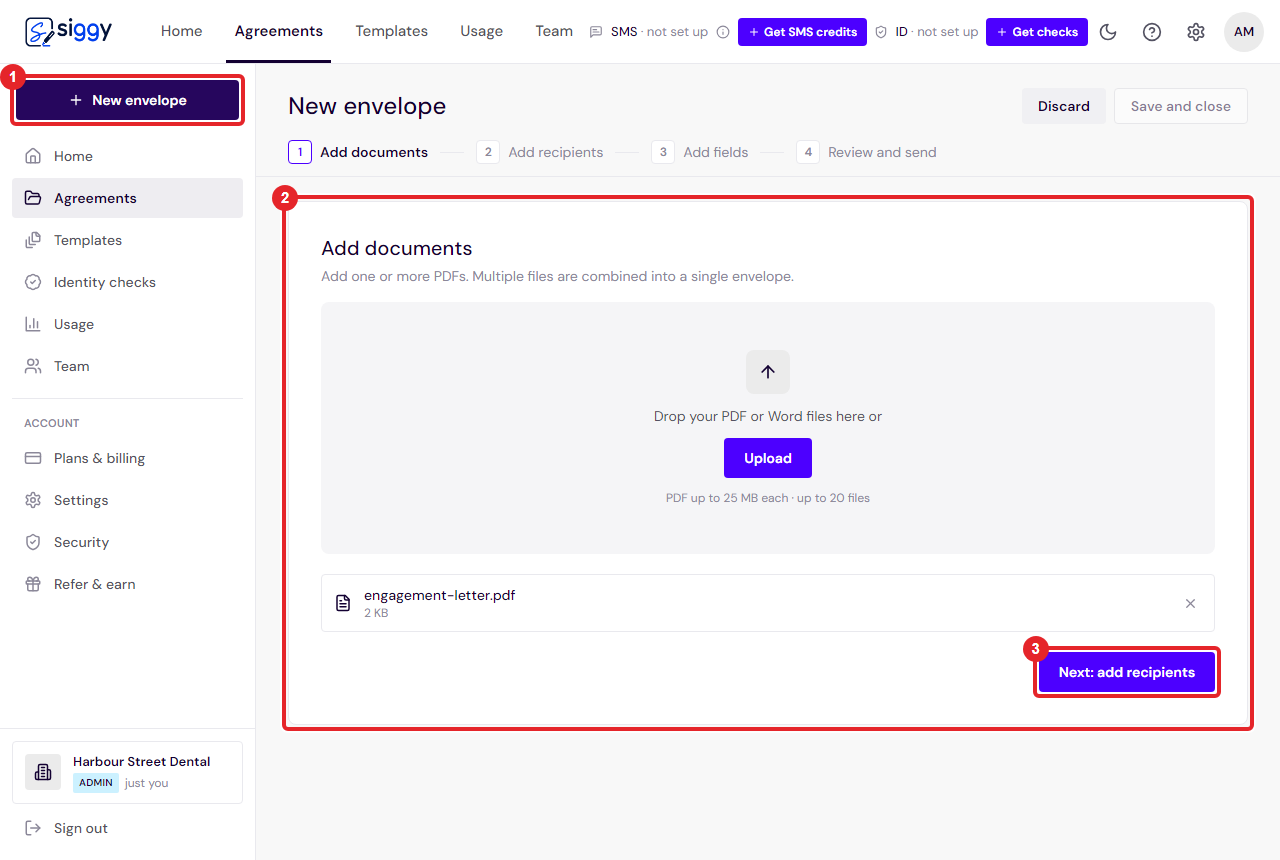
1New envelope2The upload area3Next: add recipients - 2
Add the people who need to sign
- Give the envelope a title. Your signers see it in the email subject, so make it something they will recognise.
- Type each signer's full name and email address.
- Click Add recipient for each extra person. Everyone on the envelope receives the same documents and sees the others' signatures.
- Click Next: add fields.
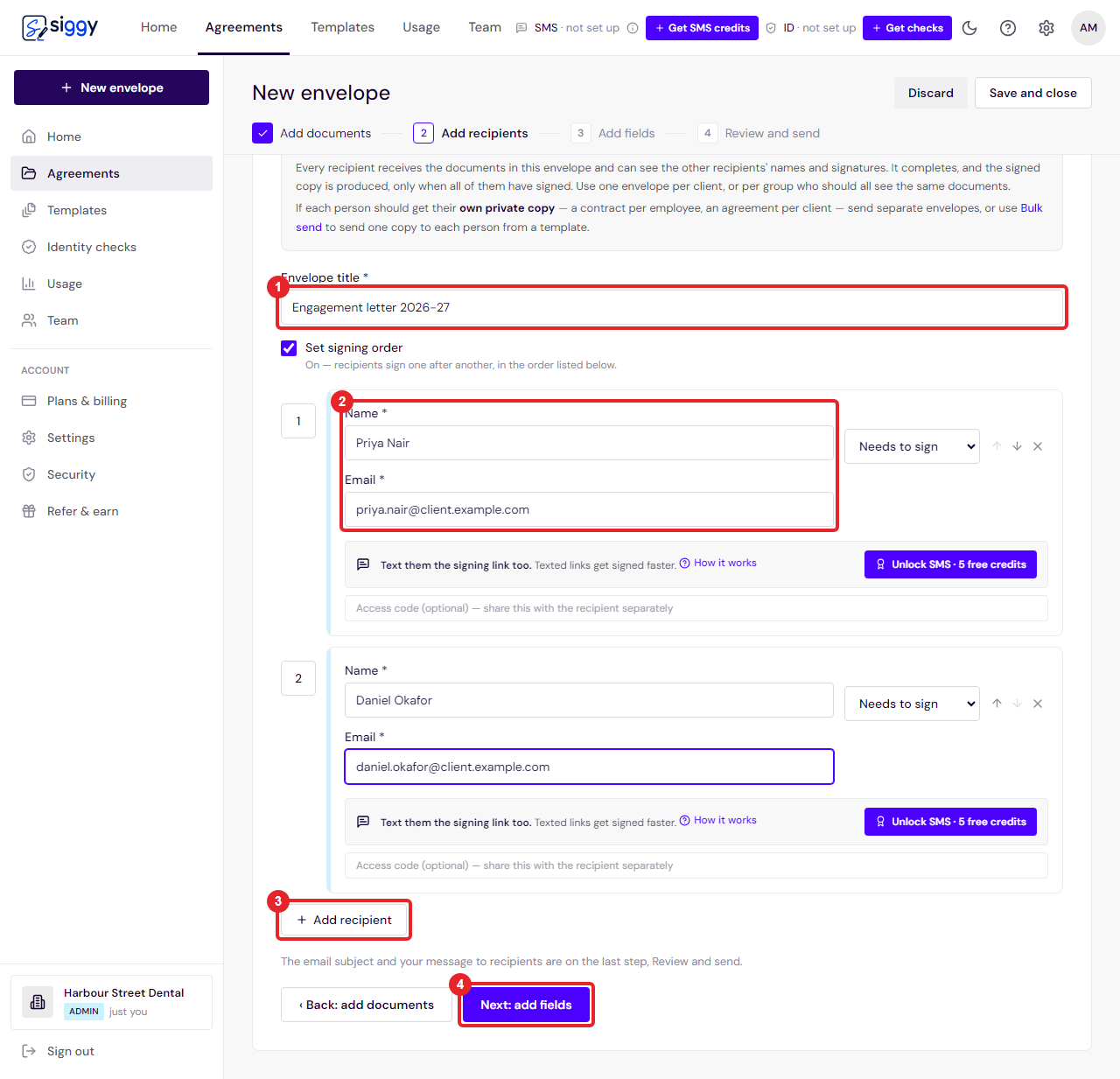
1Title2Signer's name and email3Add recipient4Next: add fields - 3
Place the signature boxes
- Pick the person you are placing boxes for in the Recipient list on the left. Each person has their own colour.
- Click Signature in the Fields panel, then click on the page where their signature goes. Do the same for Date signed if you want it.
- Switch to the next person and place theirs. A field only appears to the person it belongs to.
- Click Next: review and send.
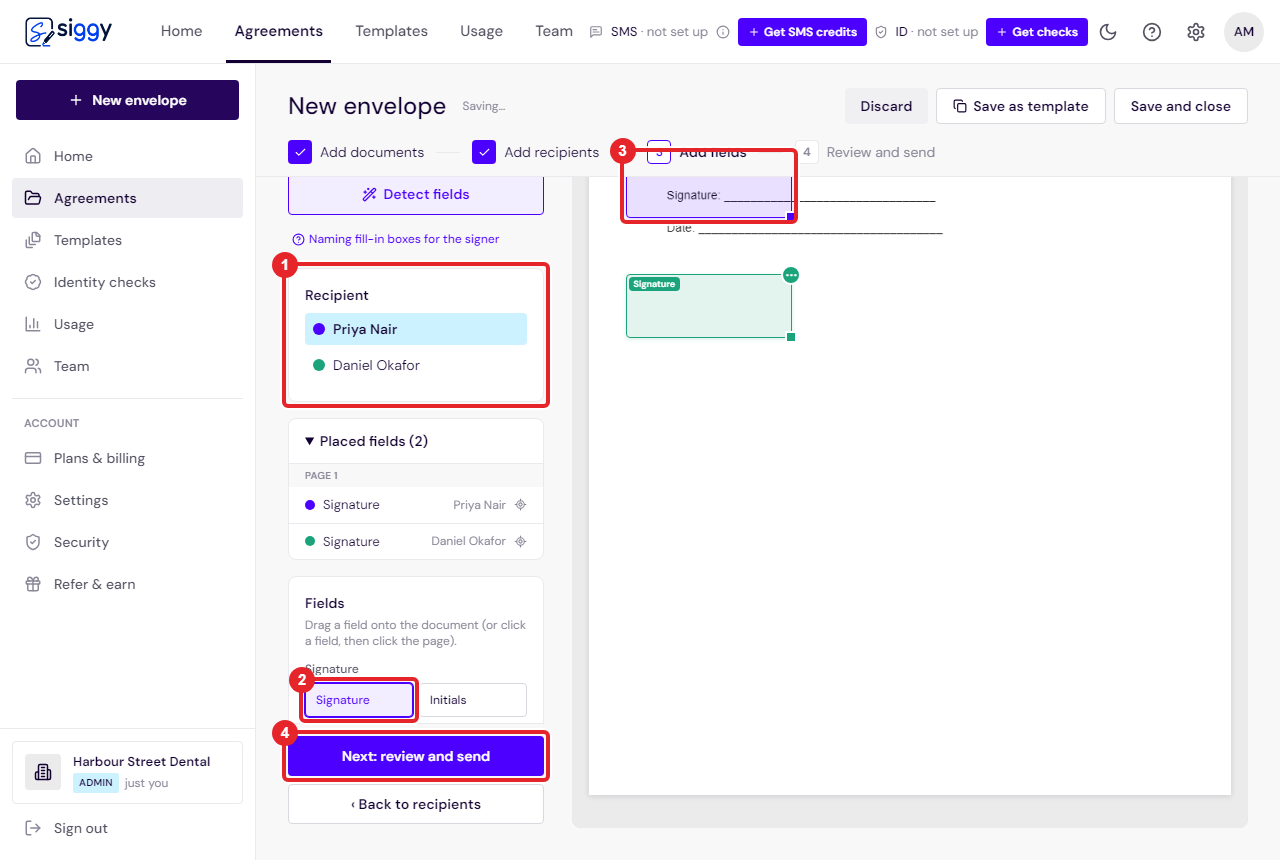
1Recipient list2Signature field3The placed box on the page4Next: review and send - 4
Review and send
- Check the title and the recipients. You can add a short message that goes in the email.
- Click Send. Every signer gets an email with their own link straight away.
- You land on a confirmation page with each person's signing link, in case you want to send one yourself.
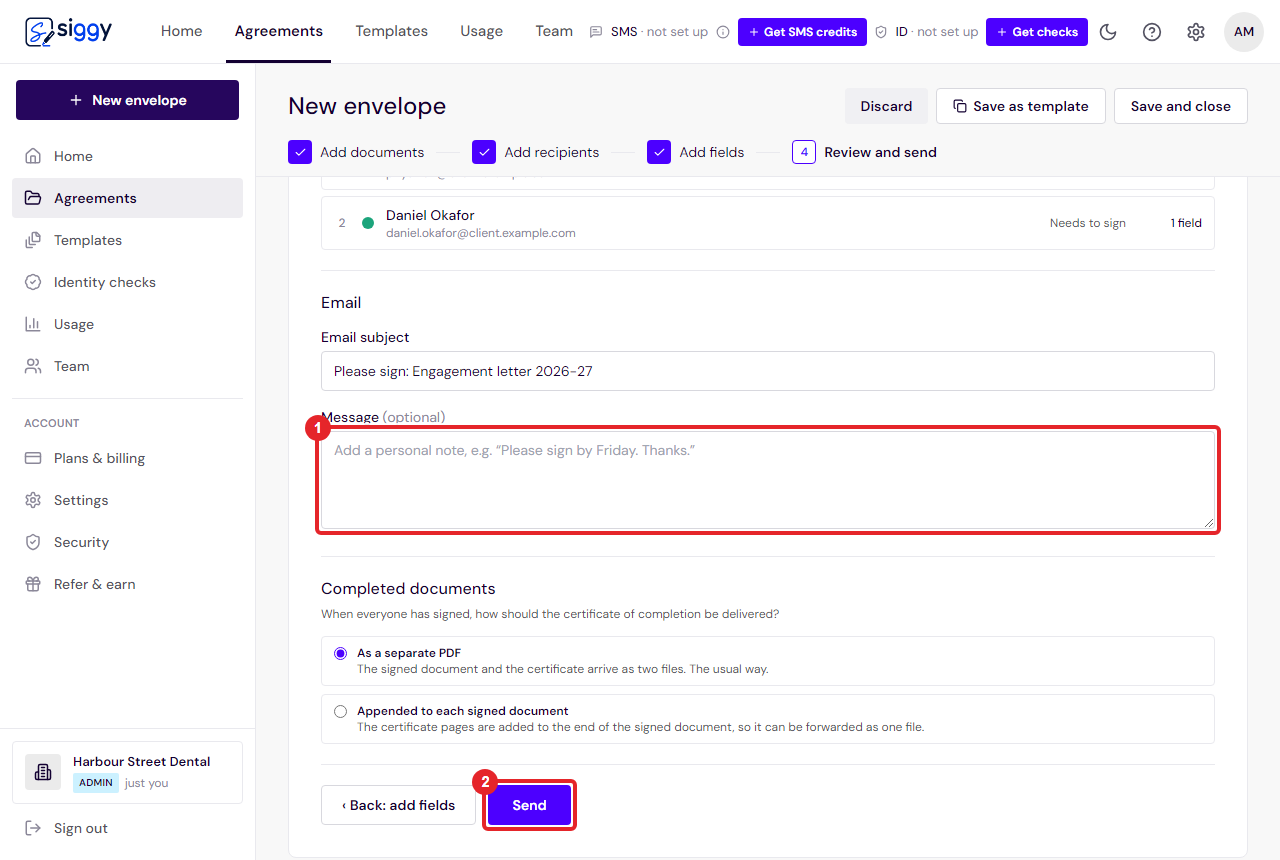
1Message to recipients2Send - 5
What your signer sees
- They open the link, agree to sign electronically, and are walked box by box through what you placed.
- When the last person signs, everyone is emailed the signed copy and the certificate of completion, and the envelope moves to Completed.
- Until then it sits under Agreements › Waiting for others, where you can send a reminder with one click.
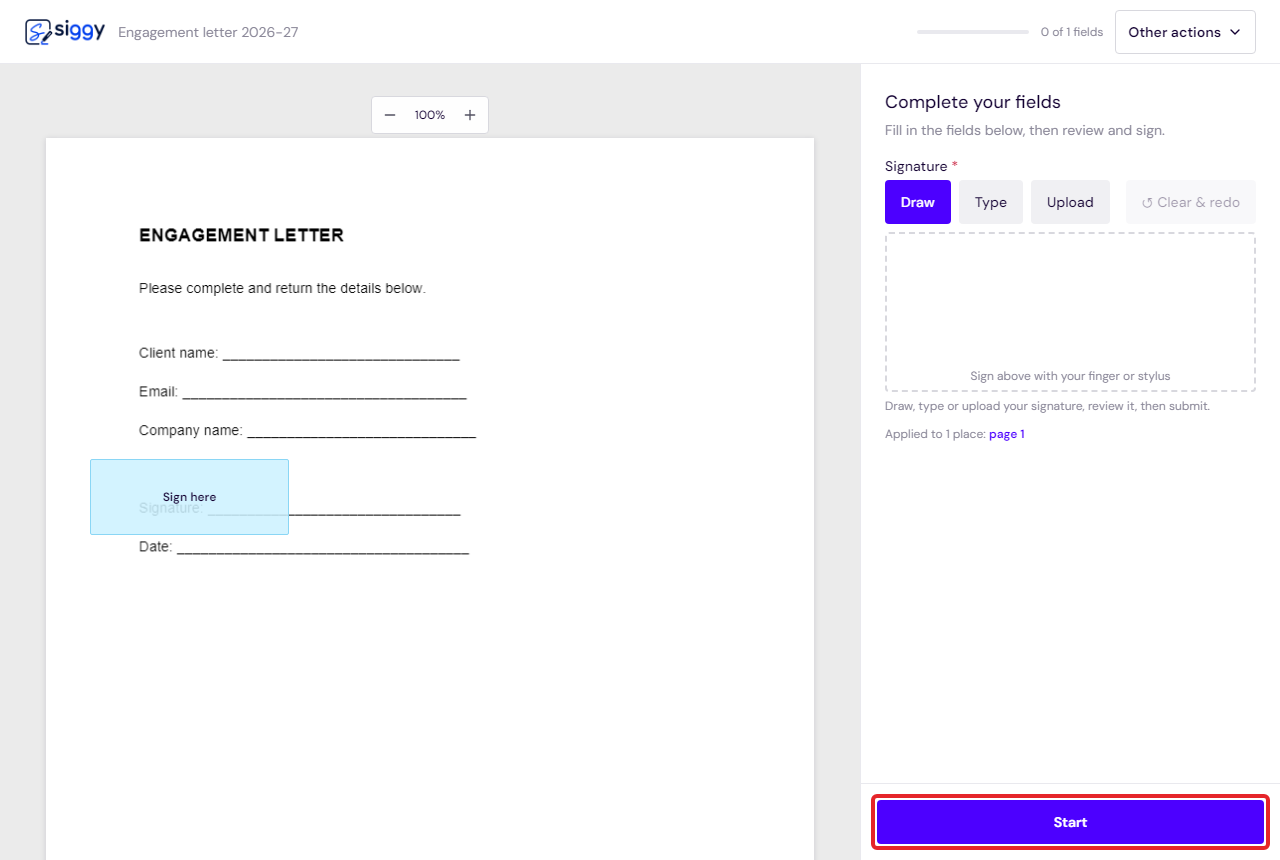
1The signature box waiting for them2Start
Good to know
- Set Set signing order on the recipients step if one person must sign before the next is invited.
- Siggy reminds anyone who has not signed every three days. You can change that under Settings.
Related guides
One envelope or many? Who should go on an envelope
An envelope goes to everyone on it with the same documents, and completes only when they have all signed. Here is how to decide, and what to use instead when each person needs their own copy.
Open the guide ›Custom fields: collect the details you need as they sign
Place a text box on the document, name it in your own words, and the signer is asked for exactly that. The answer lands in the signed PDF.
Open the guide ›Templates: set up once, send in seconds
Save a document with its fields as a template, send it to a new client with just a name and email, and edit the wording of your templates right inside Siggy.
Open the guide ›Still stuck? Email [email protected] with the envelope's title and we will sort it with you.