

Email gets read tomorrow. A text gets read now. Add a signer's mobile number and they get their signing link by text as well as email, plus up to two reminder texts if they have not signed.
It runs on prepaid SMS credits: one credit covers one envelope with SMS, invite and reminders included.
- 1
Turn it on and get your free credits
- Click Plans & billing in the left-hand menu and scroll to SMS credits.
- Click Unlock SMS. Your first five credits are free.
- The same card on your Home page tells you how many credits you have left.
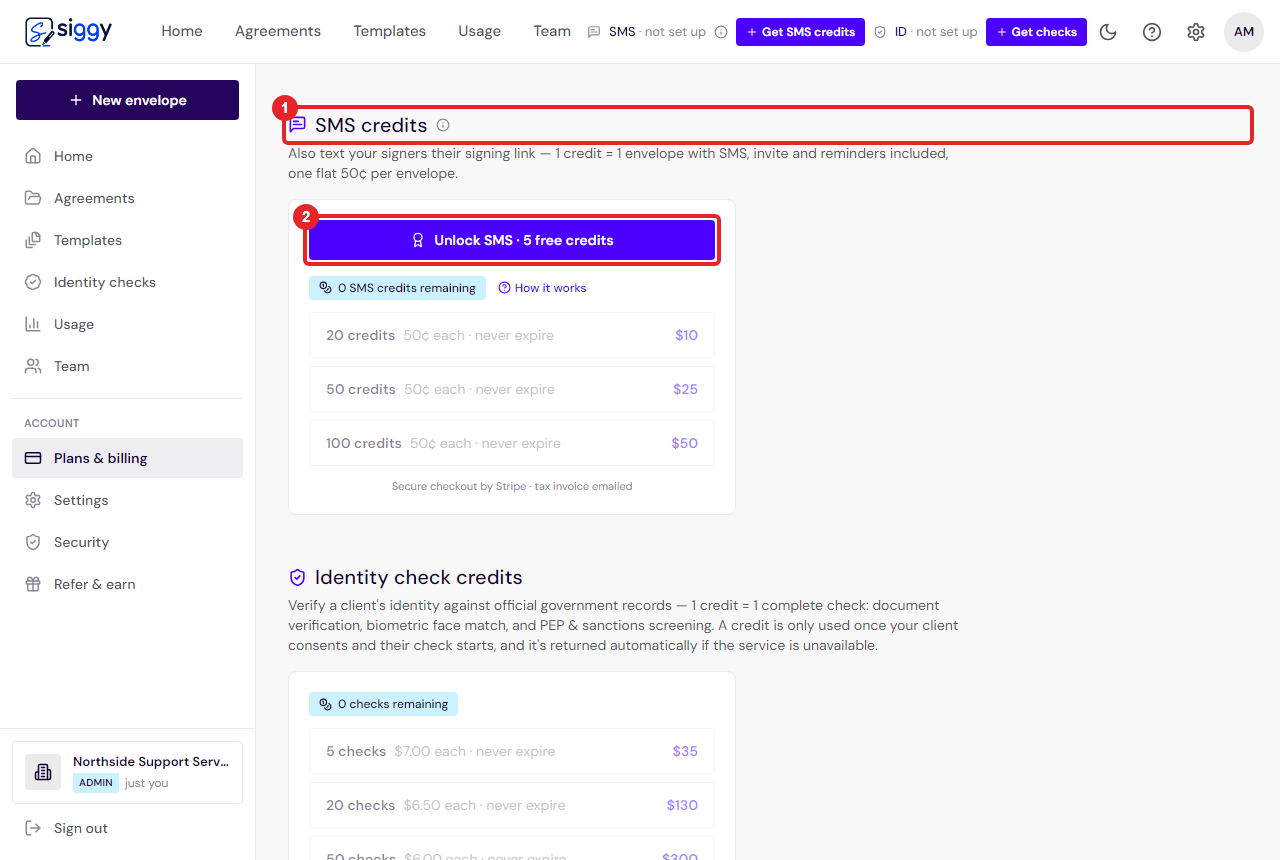
1SMS credits2Unlock SMS - 2
Add the signer's mobile
- On the Add recipients step, each signer's row has a Mobile box under their email.
- Type their mobile number. Australian numbers in any usual format work, for example 0412 345 678.
- Leave it blank for anyone who should get email only. Send as normal.
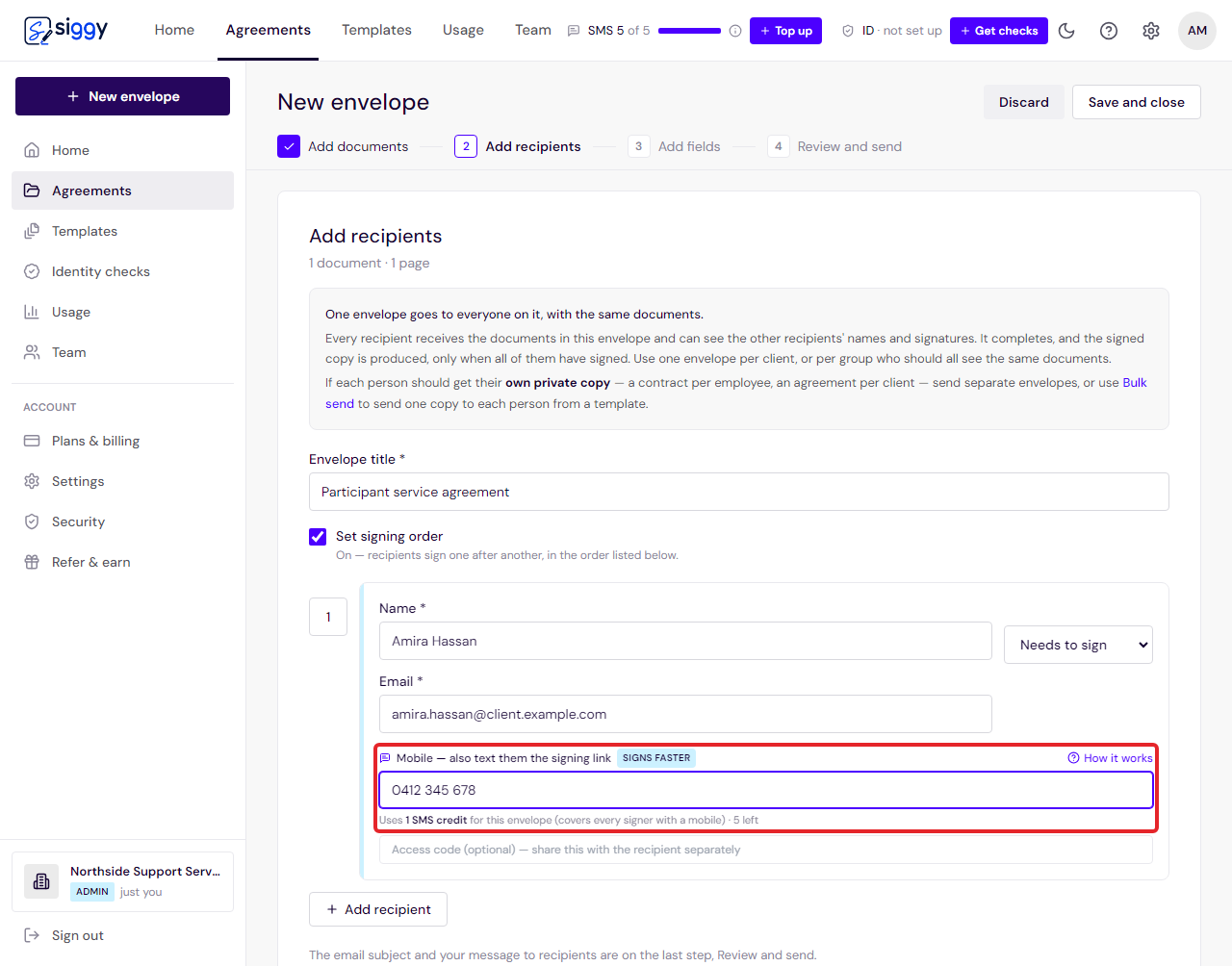
Mobile - 3
What arrives on their phone
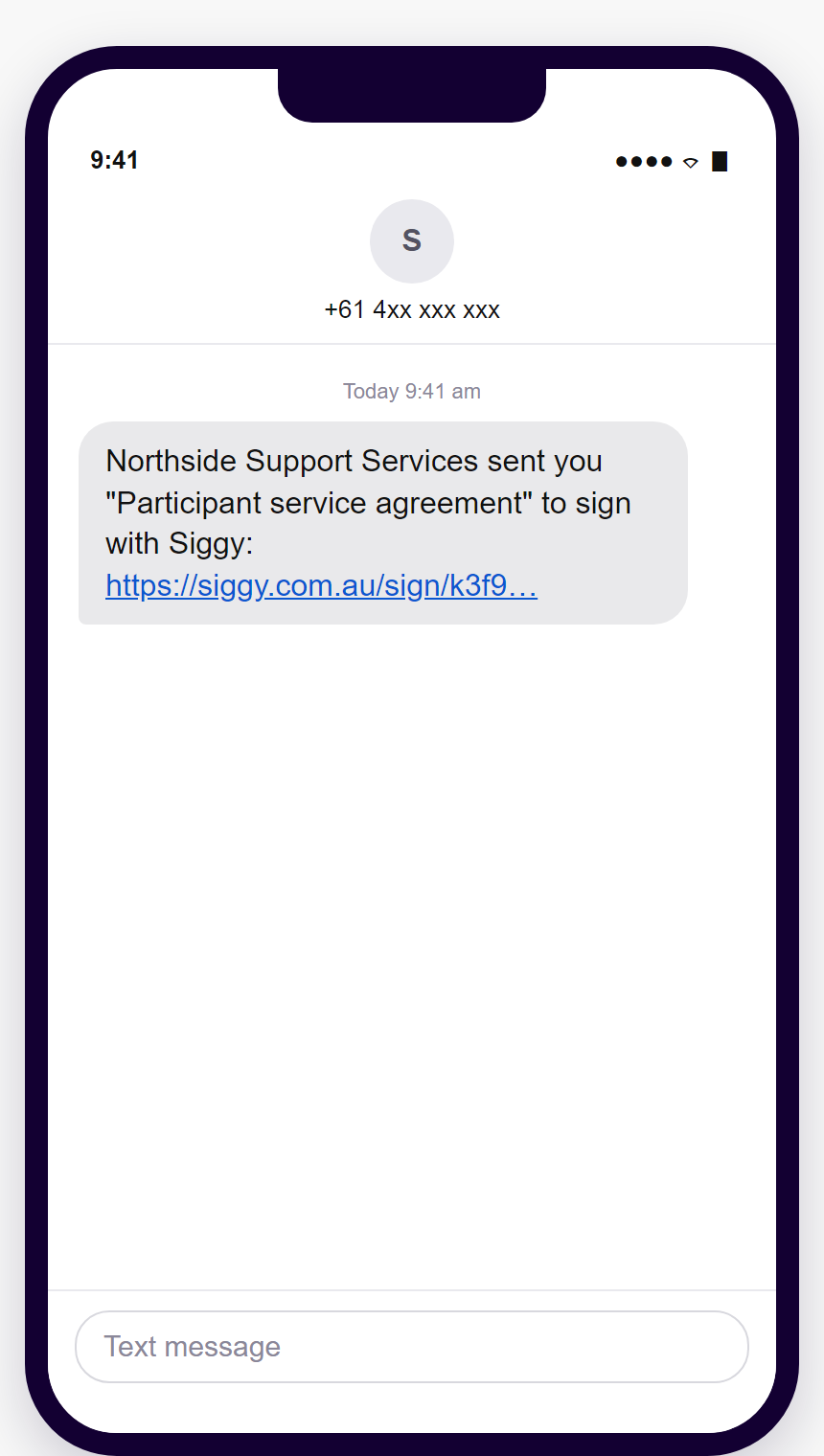
- A short text naming your practice and the document, with the link. Tapping it opens the signing page in their phone's browser; nothing to install.
- If they have not signed, a reminder text follows on the same schedule as the email reminders, up to two.
- The email still goes as well, so there is always a copy in their inbox.
- 4
Top up
- When credits run low, the Home page tells you. Envelopes keep going by email even at zero.
- Under Plans & billing › SMS credits, pick a pack and pay by card. Credits never expire.
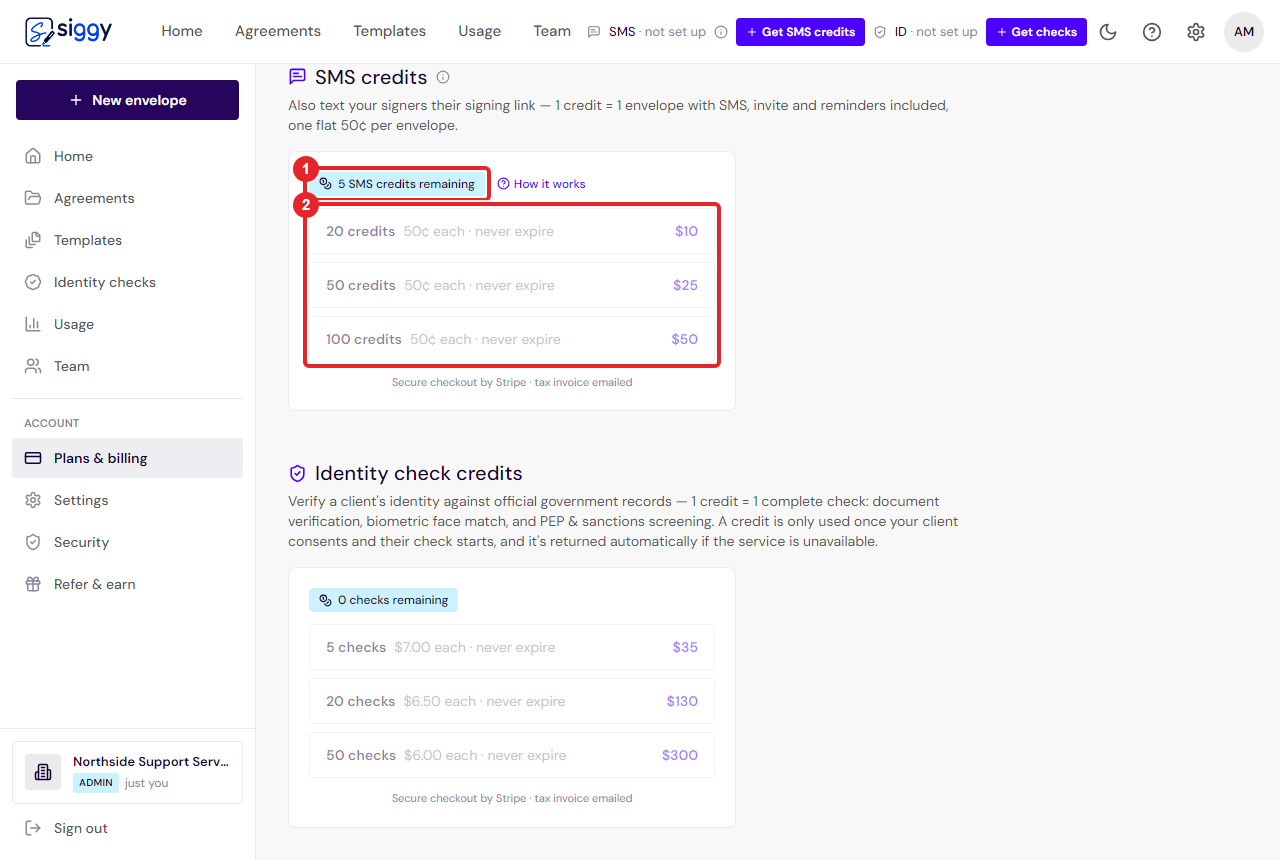
1Credits remaining2Packs
Good to know
- One credit is charged per envelope that has at least one mobile number on it, however many reminders go.
- Add a mobile to a template's signing role and every envelope from it texts the link automatically.
Related guides
Send your first envelope
Upload a document, add the people who need to sign, place the signature boxes and send. About two minutes, start to finish.
Open the guide ›Templates: set up once, send in seconds
Save a document with its fields as a template, send it to a new client with just a name and email, and edit the wording of your templates right inside Siggy.
Open the guide ›Still stuck? Email [email protected] with the envelope's title and we will sort it with you.