

By default a signer can draw their signature, type their name in a signature font, or upload an image of their signature. All three are valid electronic signatures under Australian law.
Some organisations will not accept the typed kind on their forms. The NDIS is the one we hear about most, for participant consent and service agreements. If that is you, turn typing off once and it applies to every envelope you send, including the ones already out.
- 1
Open the Signing setting
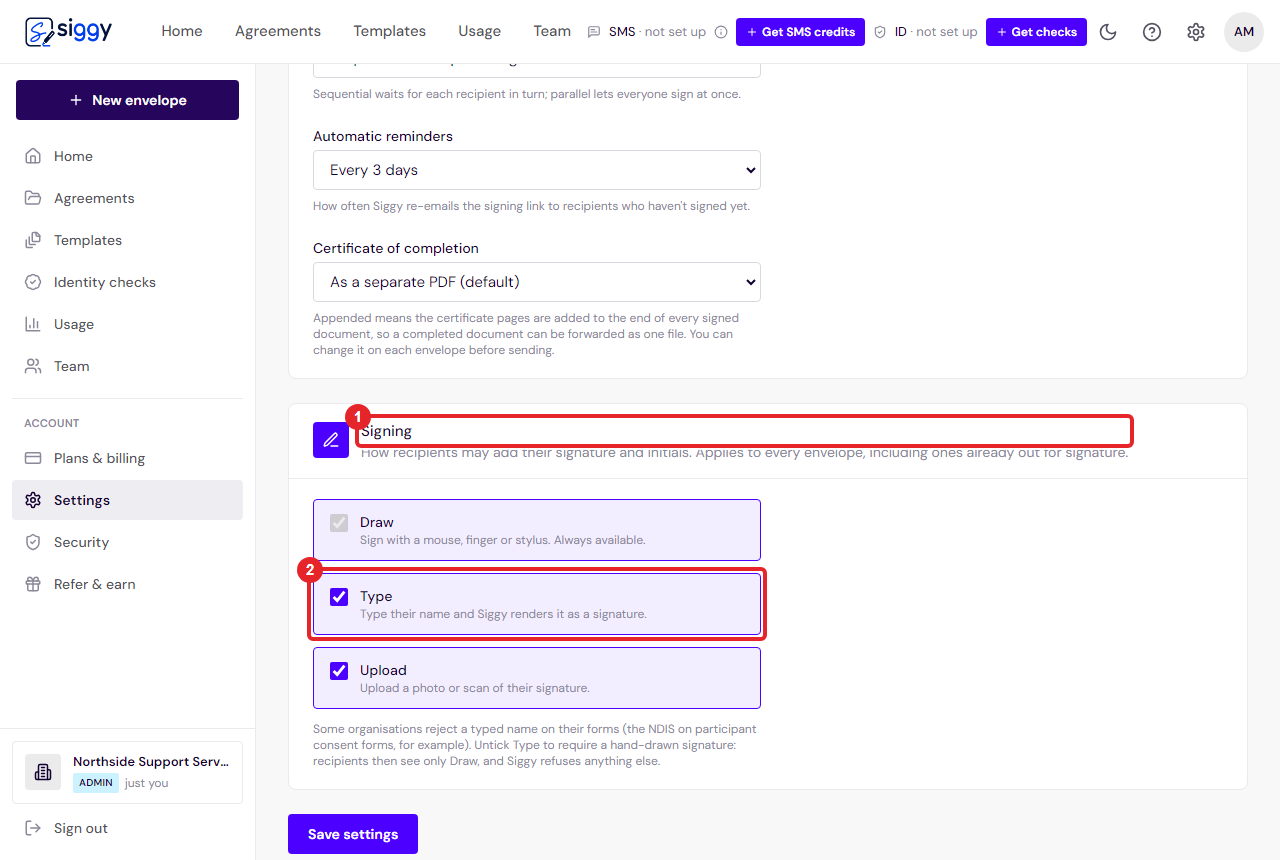
- Click Settings in the left-hand menu and scroll to the Signing card.
- You see three ways of signing: Draw, Type and Upload. Draw is always on.
1Signing2Type - 2
Untick Type, then save
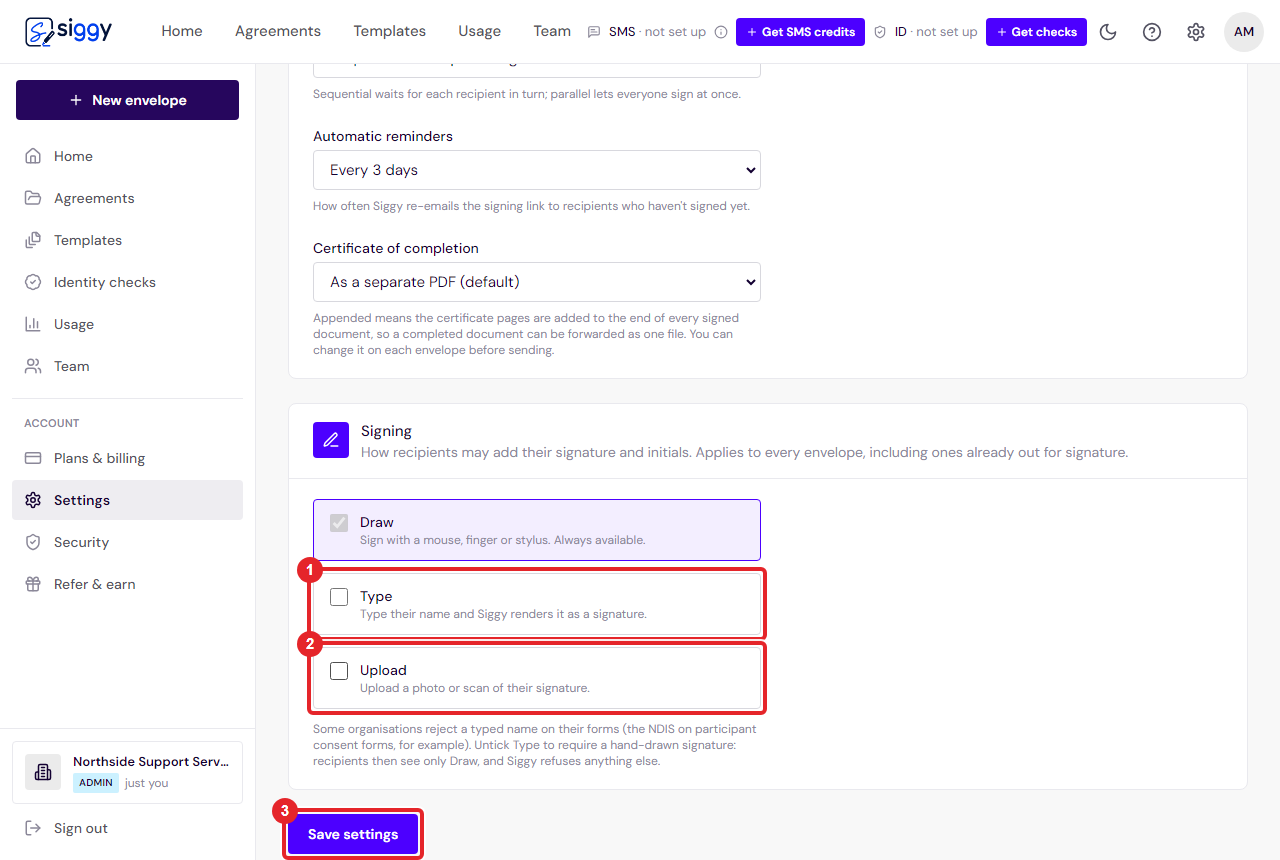
- Untick Type, and untick Upload as well, so a photo of a signature is not accepted either.
- Click Save settings at the bottom of the page.
- This applies straight away, including to envelopes already out for signature.
1Type unticked2Upload unticked3Save settings - 3
What the signer sees
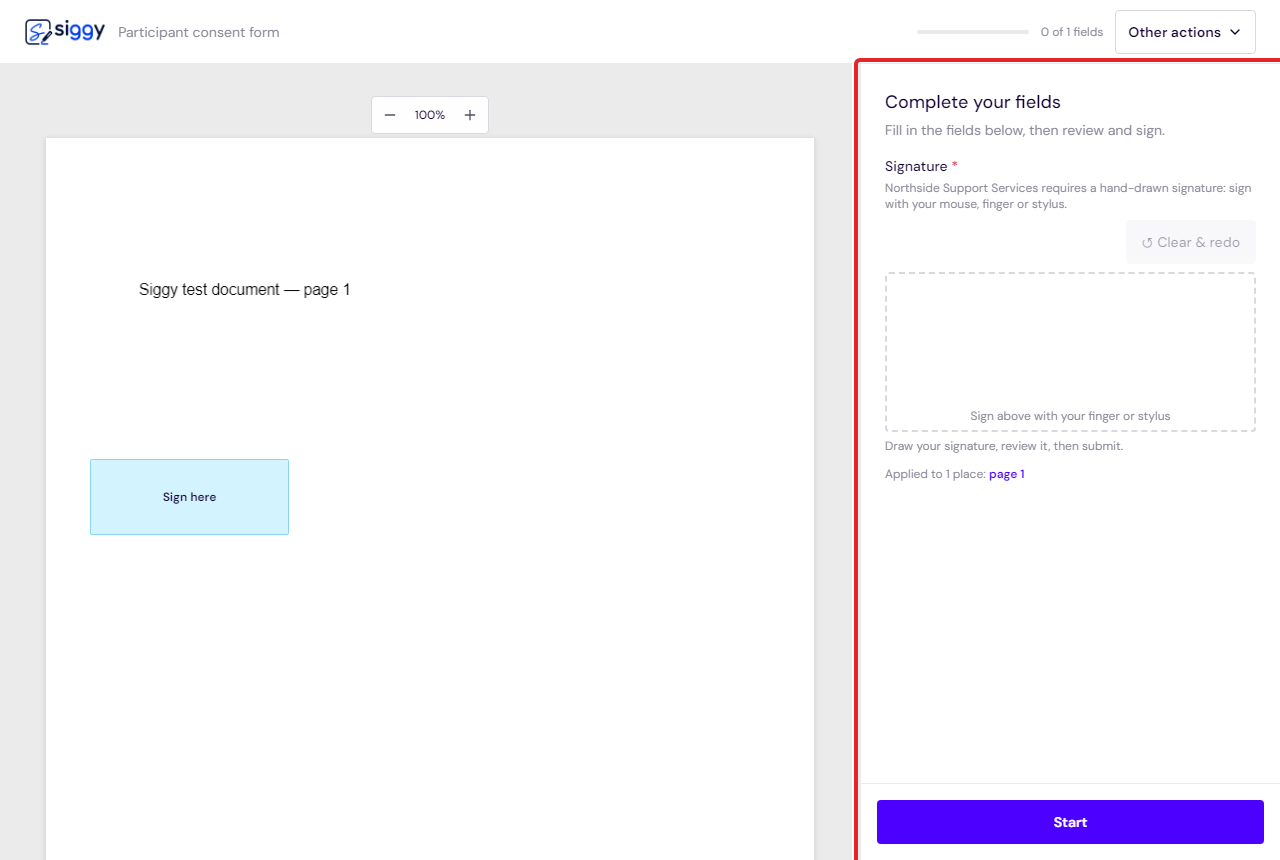
- When they reach a signature box they are offered only Draw, with a mouse, finger or stylus.
- On a phone they can turn it sideways for a bigger pad.
- The certificate of completion records that the signature was drawn.
Draw is the only option
Good to know
- This is an account-wide setting. If only some forms need it, consider a separate Siggy account for that work, or leave Type on and ask those signers to draw.
Related guides
Send your first envelope
Upload a document, add the people who need to sign, place the signature boxes and send. About two minutes, start to finish.
Open the guide ›Custom fields: collect the details you need as they sign
Place a text box on the document, name it in your own words, and the signer is asked for exactly that. The answer lands in the signed PDF.
Open the guide ›Still stuck? Email [email protected] with the envelope's title and we will sort it with you.