

A signed engagement letter with no payment behind it is a chase waiting to happen. Payments on signing puts the payment in the same step as the signature: the signer is told up front, signs, then pays through Stripe's secure checkout, and the signed copies go out the moment the money is in.
The money goes straight to your own Stripe account. Siggy never holds it; it records whether it was paid, on the envelope and on the certificate.
- 1
Connect your Stripe account
- Open Security from the account menu and find the Payments on signing card.
- Click Connect Stripe. Stripe asks you to choose the account to link, or to create one. Pick your practice's account and come back.
- The card now reads Connected and shows what your account can take: card payments, and bank debit (BECS) once you turn that on in Stripe.
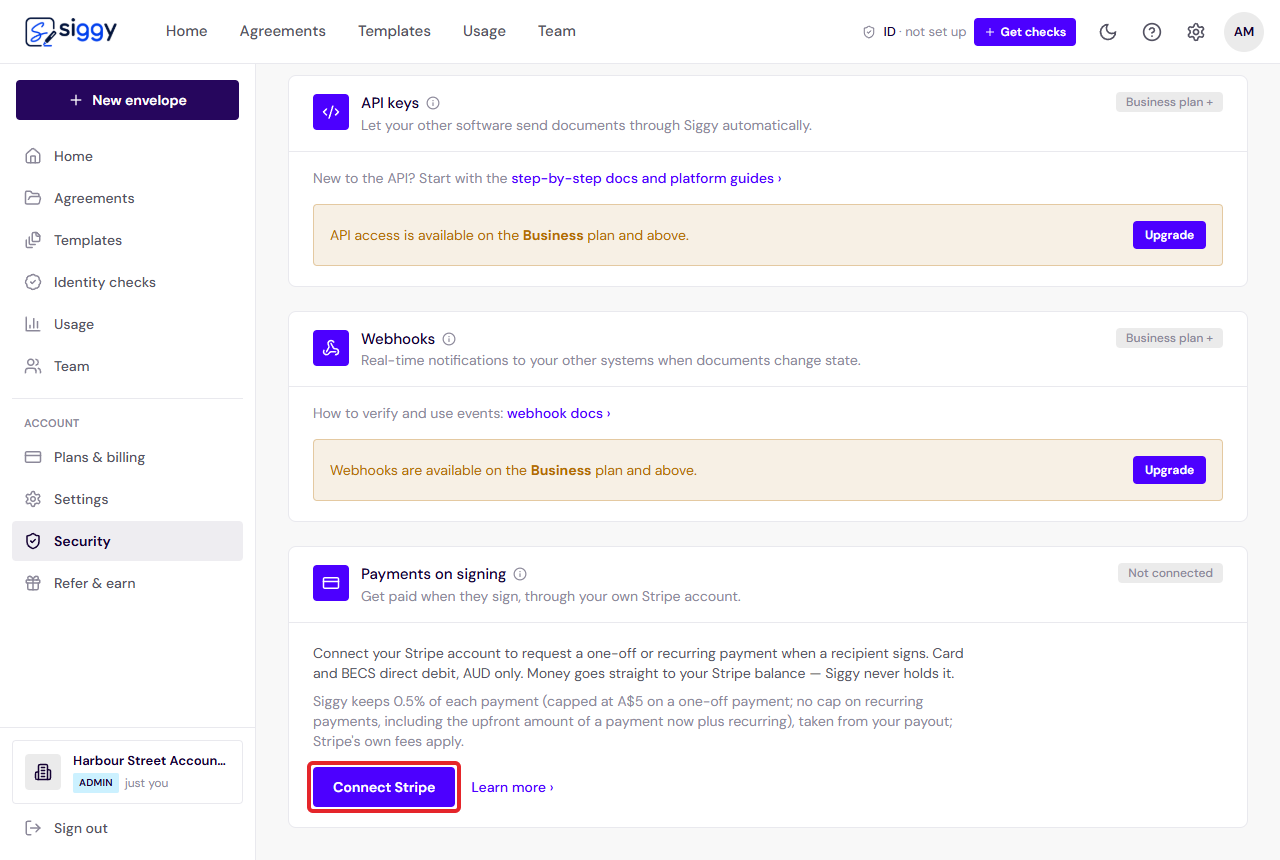
Connect Stripe - 2
Check what your account can take
- Card payments are ready as soon as Stripe has activated your account.
- Bank debit (BECS) is a setting on your Stripe account: Settings, Payment methods, BECS Direct Debit. Siggy picks it up on its own once Stripe switches it on.
- You can disconnect at any time. Envelopes already waiting on a payment can't be paid until you reconnect.
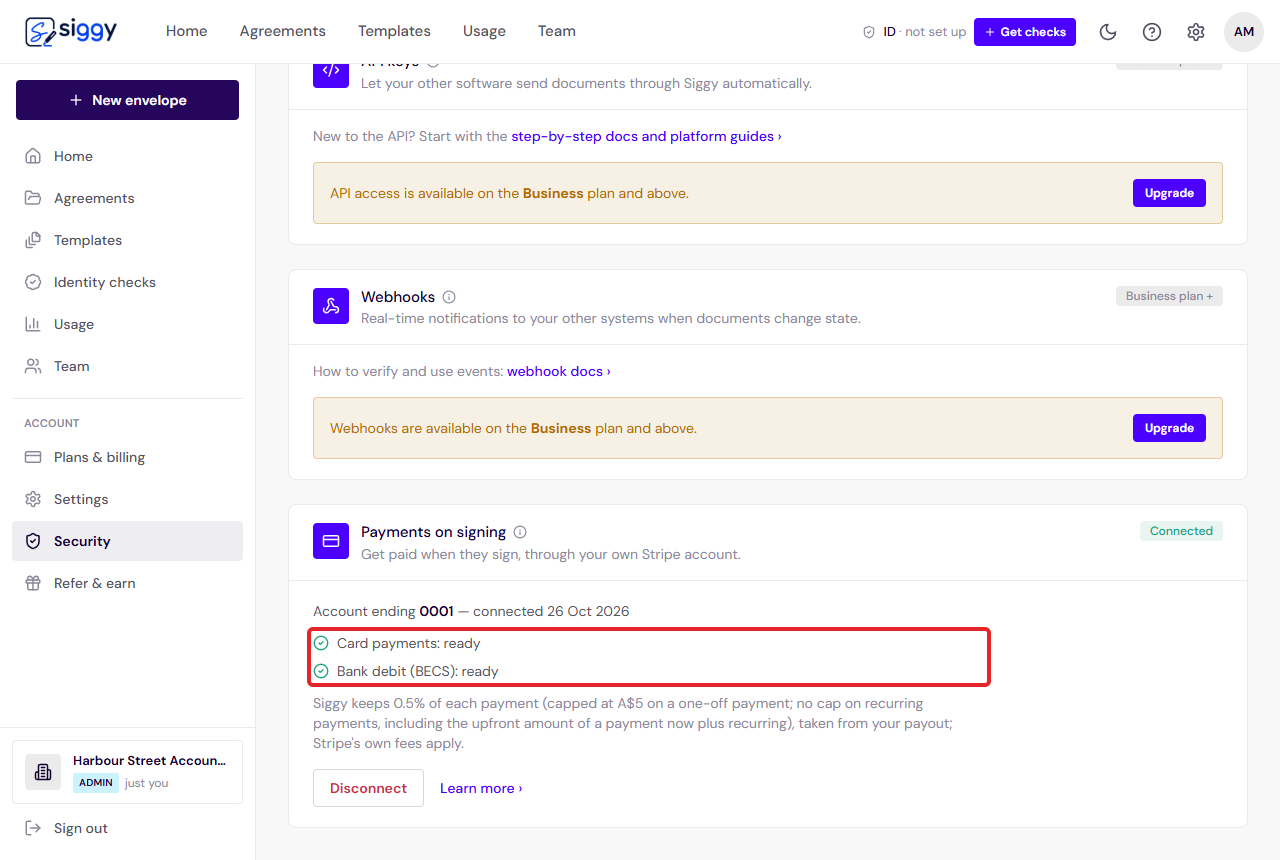
What your account can take - 3
Ask for a payment on Review and send
- Build the envelope as usual: document, signers, signature boxes.
- On Review and send, tick Request a payment when a recipient signs.
- Choose One-off, Recurring or Payment now plus recurring, type the amount, say what it is for (the payer sees this on the receipt), and choose which signer pays. Only signers can be asked to pay.
- Click Send. Templates keep the payment, so an engagement letter template can carry its fee every time.
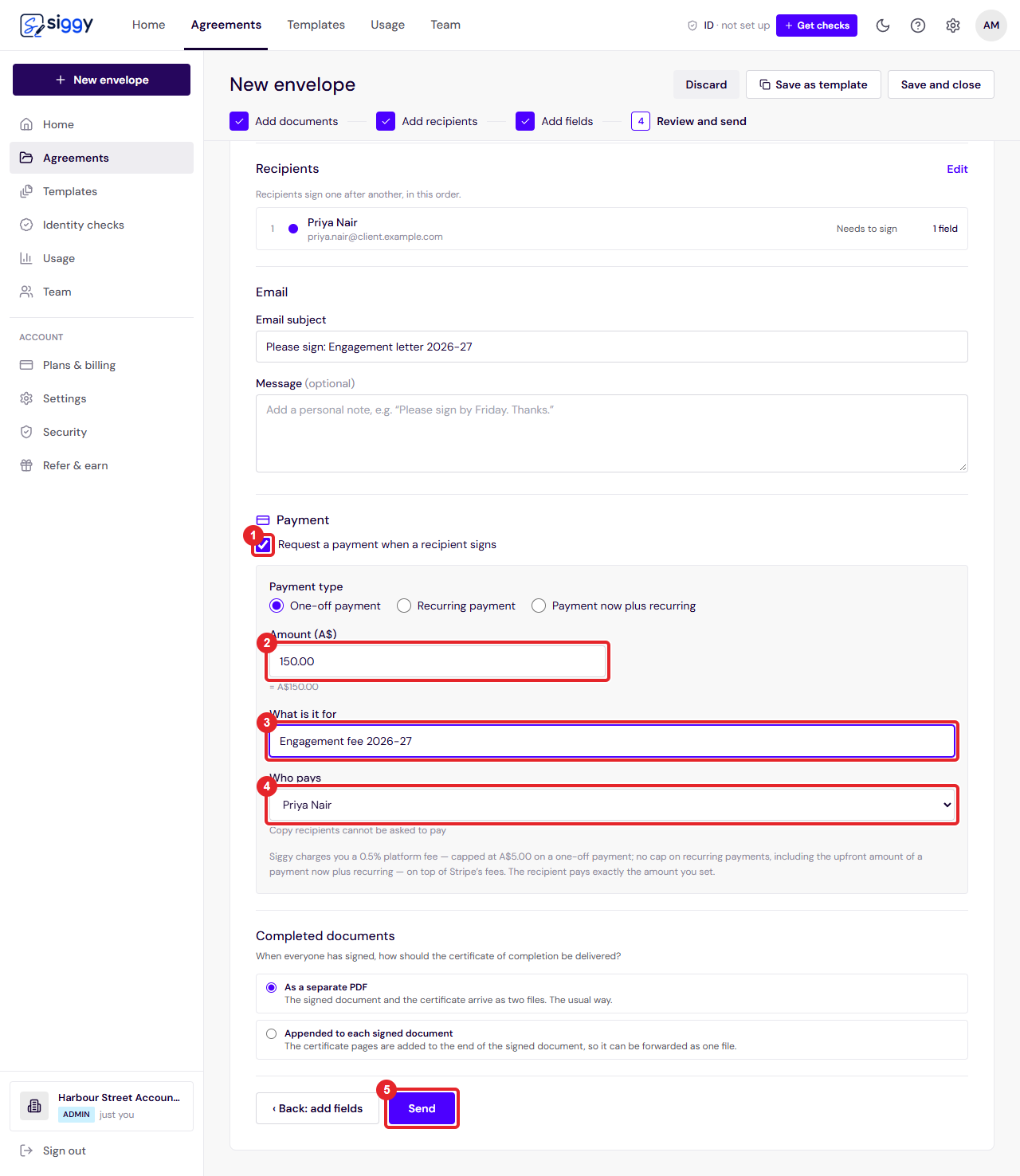
1Request a payment2The amount3What it is for4Who pays5Send - 4
What the payer sees
- Their invitation email says a payment of that amount comes with the document and that the signed copies are sent once it is paid. Nobody else's email changes.
- They sign as usual. The review screen repeats what they will be asked to pay.
- Right after their signature a Pay button opens Stripe's secure checkout. They can pay there and then, or later from the same link, which stays valid for 30 days.
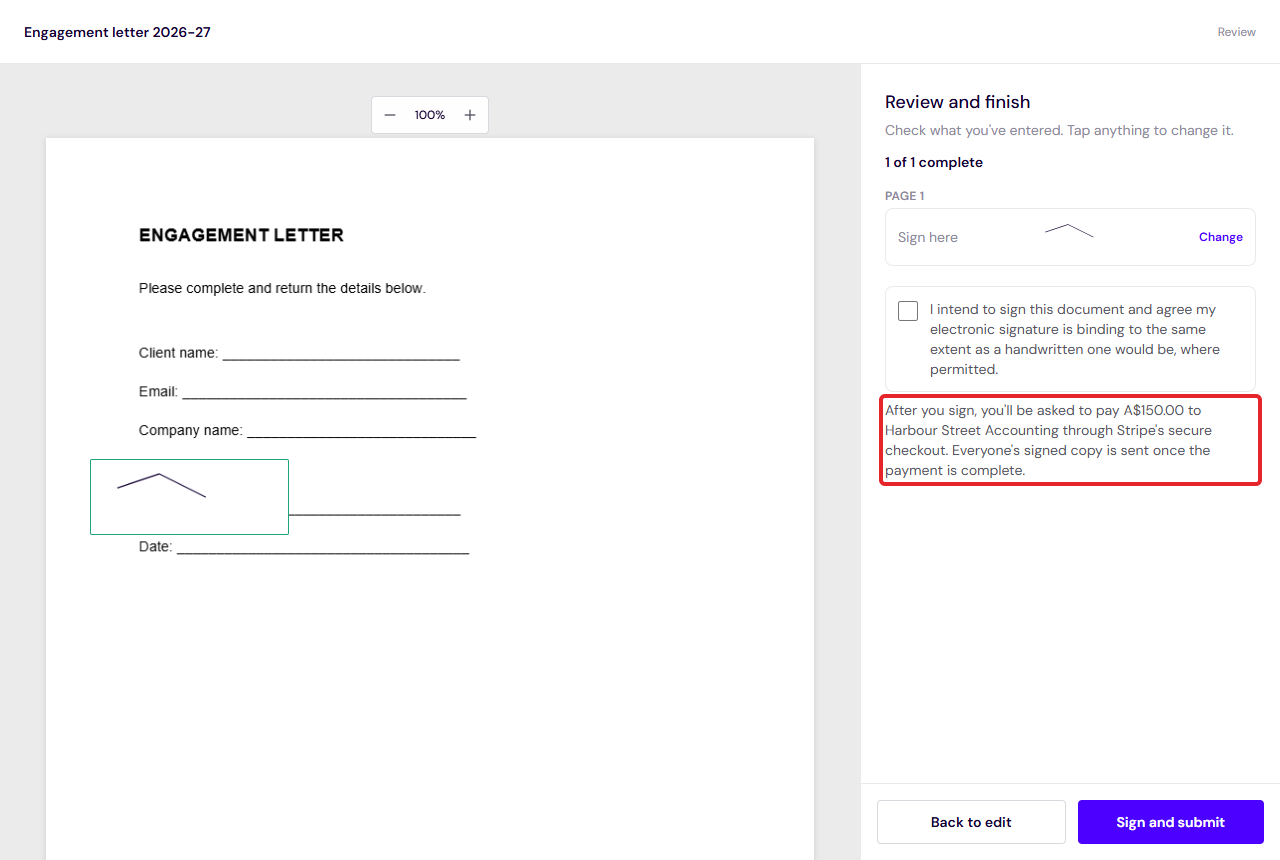
The payment note before signing - 5
They pay, everyone gets the signed copy
- The Pay card shows the amount and reminds them that everyone's signed copy is sent once the payment is complete.
- Card payments land in seconds. Bank debits take two to three business days to clear; the envelope shows Payment processing meanwhile.
- When the money is in, the envelope completes, the sealed document and certificate go to everyone, and you get a Paid email. Stripe emails the payer their receipt.
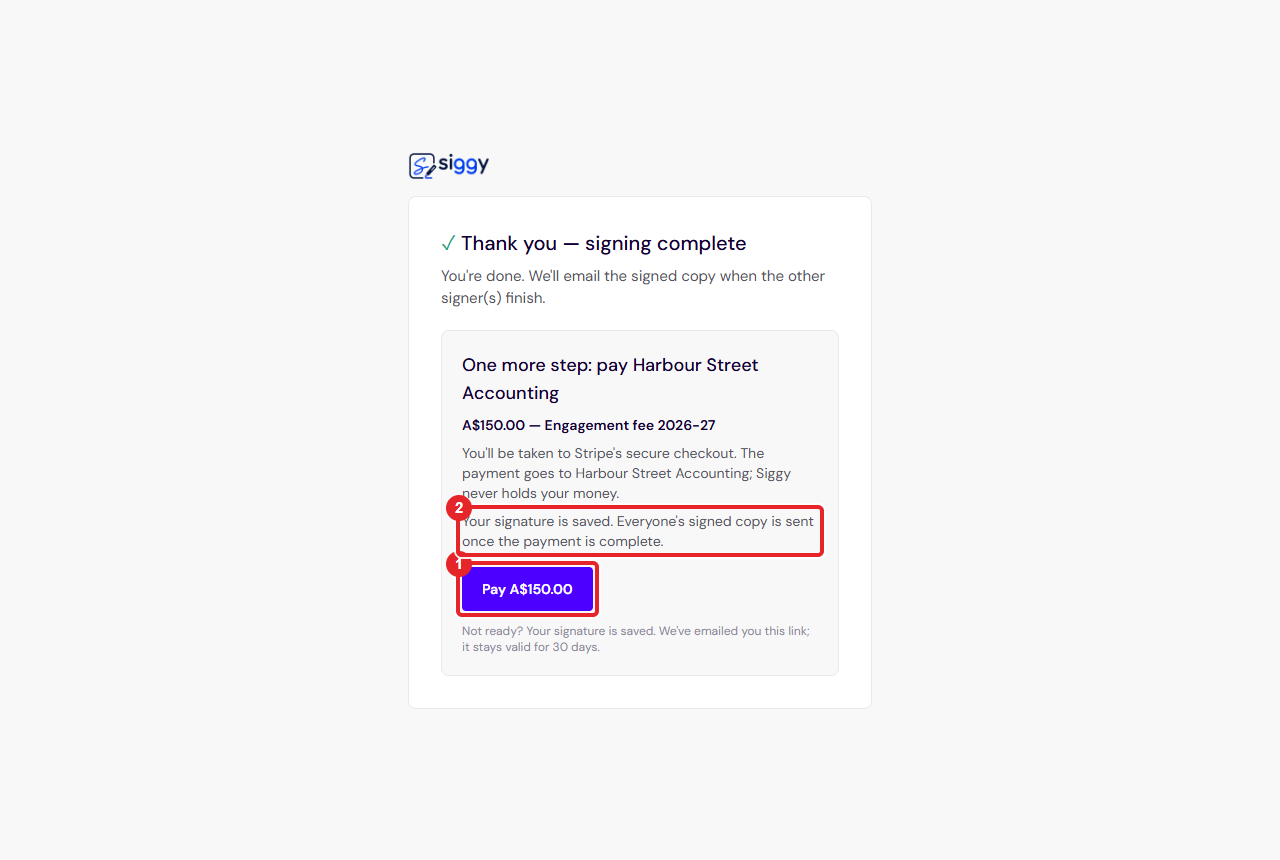
1Pay2The signed copy waits for the payment - 6
While you wait, and if plans change
- The envelope page shows Awaiting payment with who was asked and when. Resend payment request emails them again (once every ten minutes).
- Paid another way, or not needed after all? Release without payment completes the envelope on the signatures it has and sends the copies. Admins only, and it's recorded on the audit trail.
- Refund from your Stripe dashboard if you ever need to; the envelope shows Refunded within a minute.
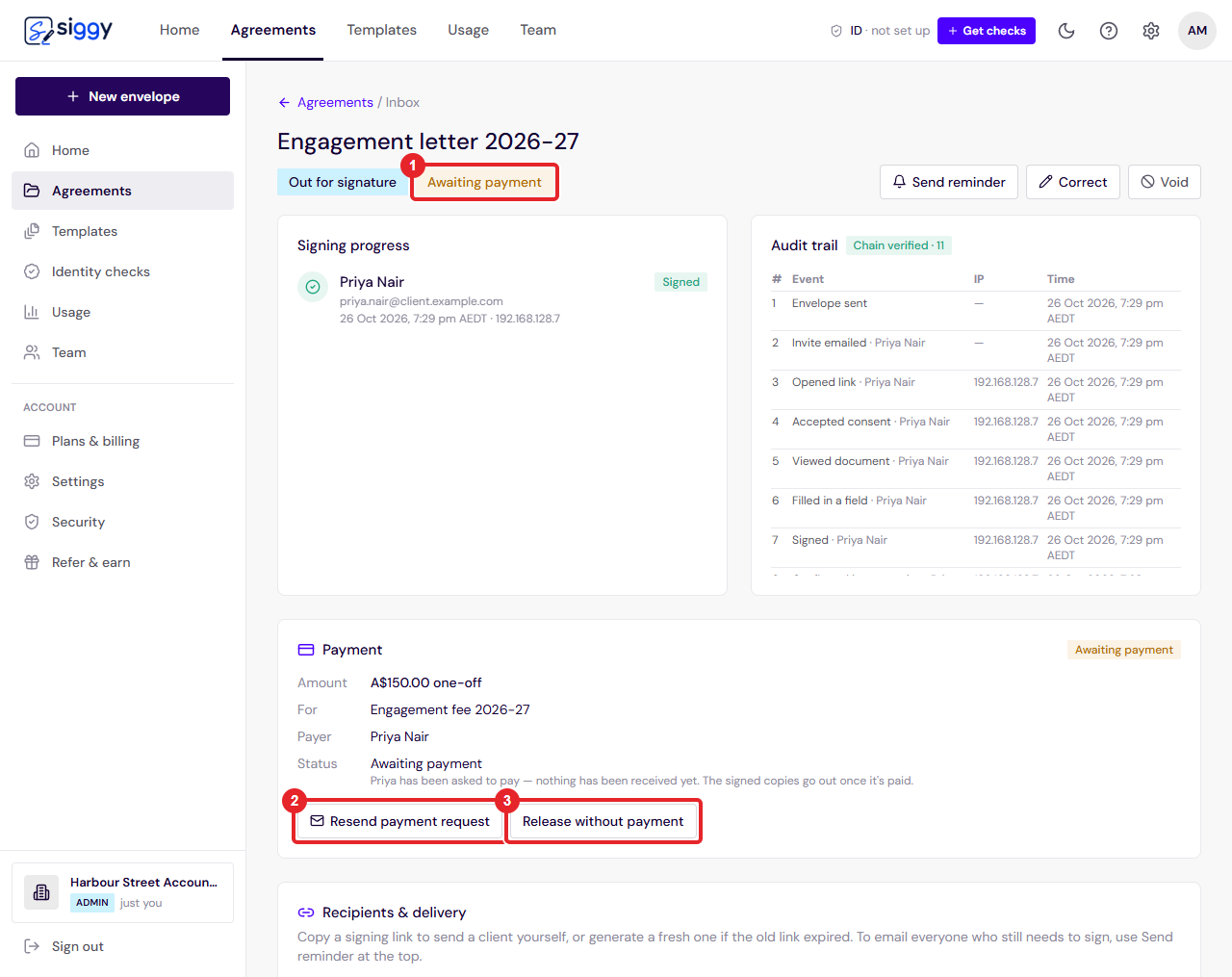
1Awaiting payment2Resend payment request3Release without payment
Good to know
- Use it where a signature and a payment belong together: an engagement letter with the fee, an NDIS service agreement with the first service period, a quote acceptance with the deposit, a retainer with its first month.
- Siggy keeps a small platform fee from each payment, shown on the Security page. Stripe's own fees apply as usual. The payer always pays exactly the amount you set.
- Recurring payments keep running in your Stripe account after the first one; manage or cancel them there.
Related guides
Send your first envelope
Upload a document, add the people who need to sign, place the signature boxes and send. About two minutes, start to finish.
Open the guide ›Templates: set up once, send in seconds
Save a document with its fields as a template, send it to a new client with just a name and email, and edit the wording of your templates right inside Siggy.
Open the guide ›Still stuck? Email [email protected] with the envelope's title and we will sort it with you.