

When an envelope goes to several people and one of them never signs, it stays under Waiting for others and nobody receives a signed copy, however many others have signed.
The fix takes a minute: remove the person who is not going to sign. The envelope completes straight away with the signatures it already has, and everyone who signed is emailed their copy.
- 1
Find the envelope
- Click Agreements in the left-hand menu.
- Click Waiting for others. This is where an envelope sits while someone still has to sign.
- Click the envelope you want to finish.
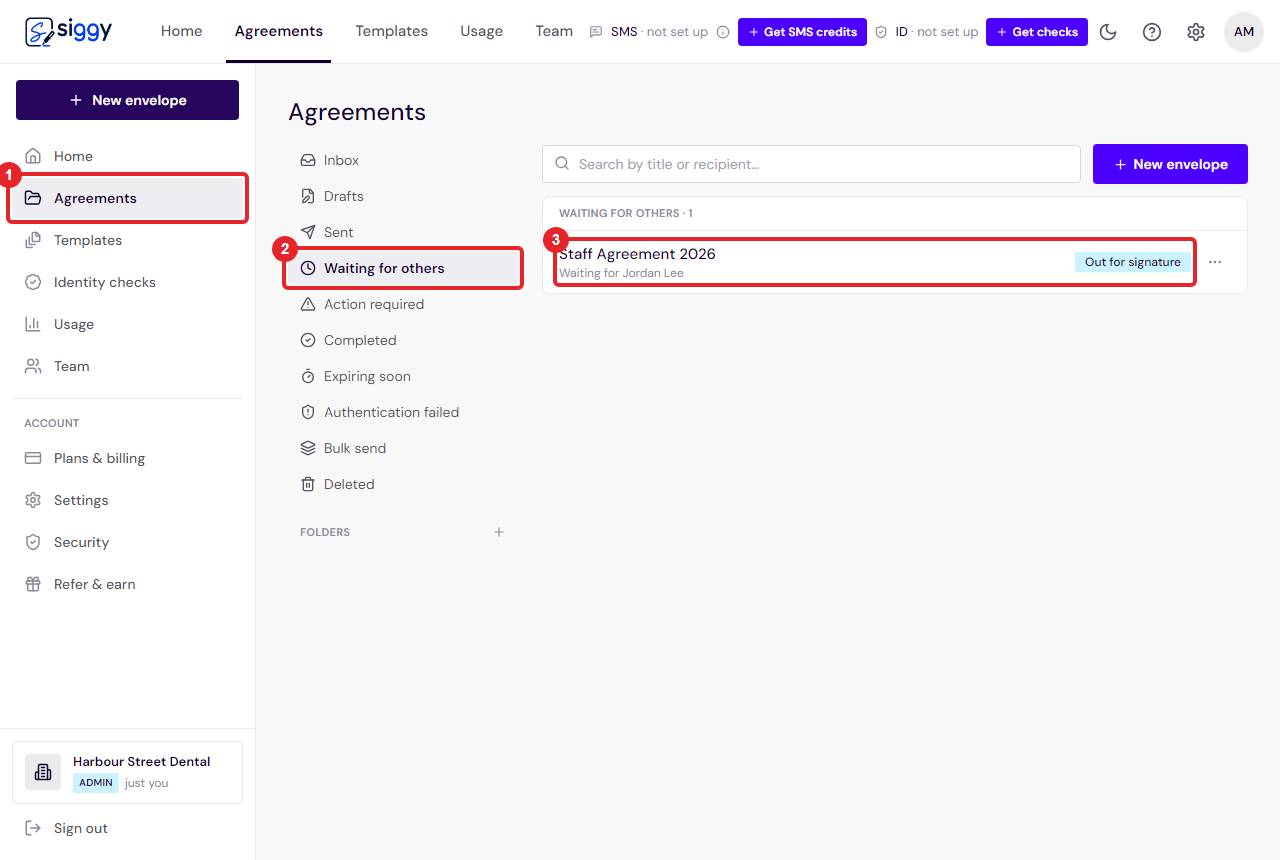
1Agreements2Waiting for others3The envelope - 2
Open Correct
- The grey panel tells you how many people have signed, for example "4 of 5 have signed", and that the signed copy is only made once everyone has.
- Click Correct at the top right.
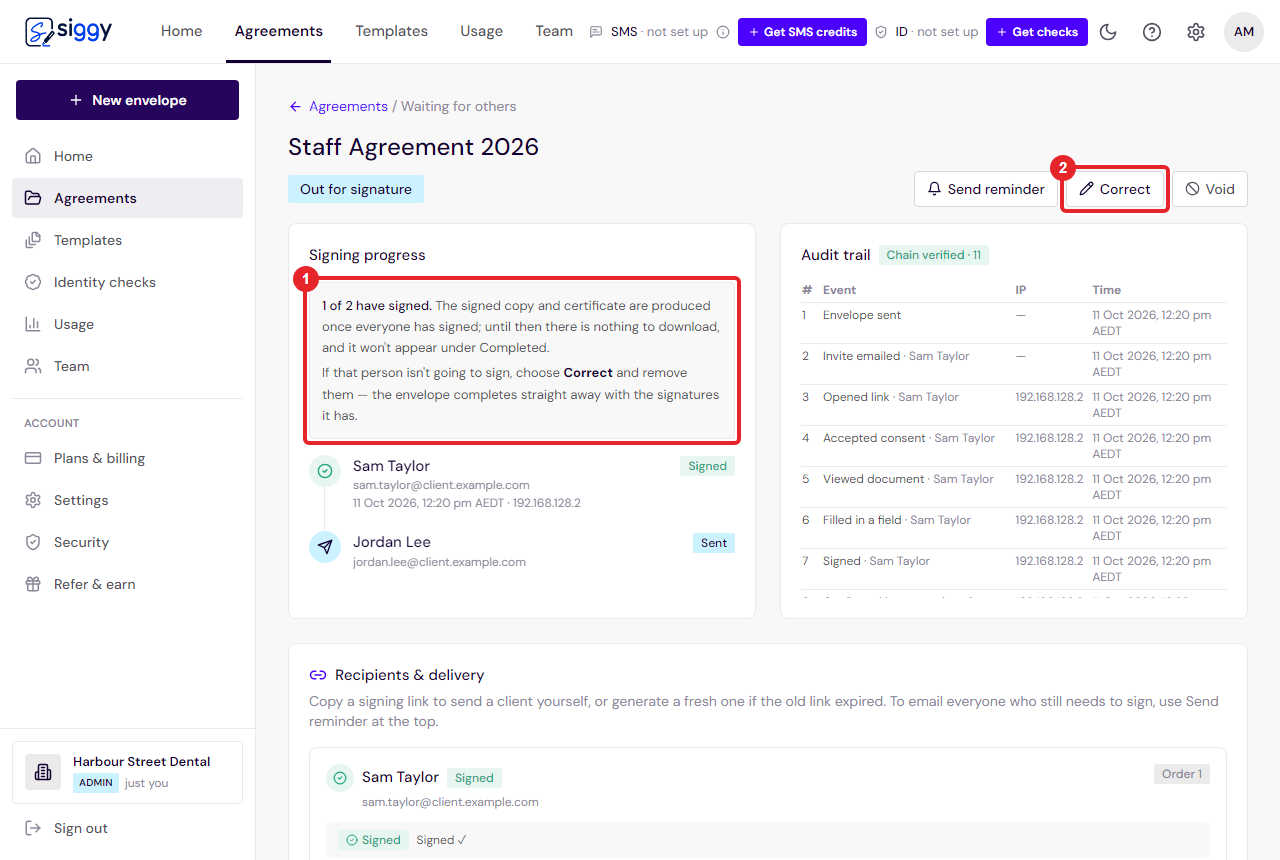
1How many have signed2Correct - 3
Remove the person who is not going to sign
- You see everyone on the envelope. People who have already signed are greyed out and cannot be changed.
- Find the person who is not going to sign and click the small bin icon at the right of their row. The row disappears.
- If more than one person needs removing, click the bin on each of them.
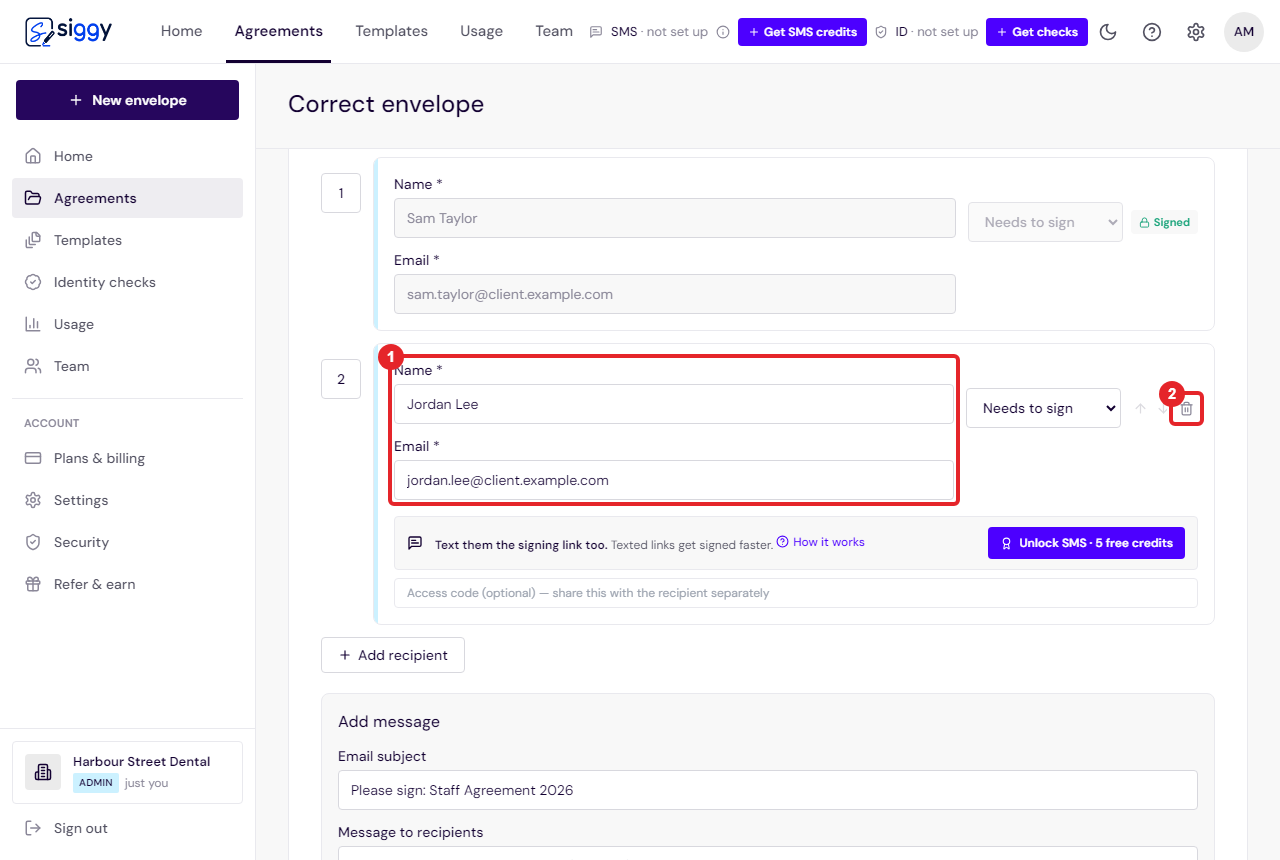
1The person who will not sign2Remove recipient - 4
Save
- Scroll down the left-hand side and click Save & resend correction.
- Nothing is re-sent to anyone, because nobody is left waiting. The envelope finishes straight away.
- The screen may not change after you save. That is normal.
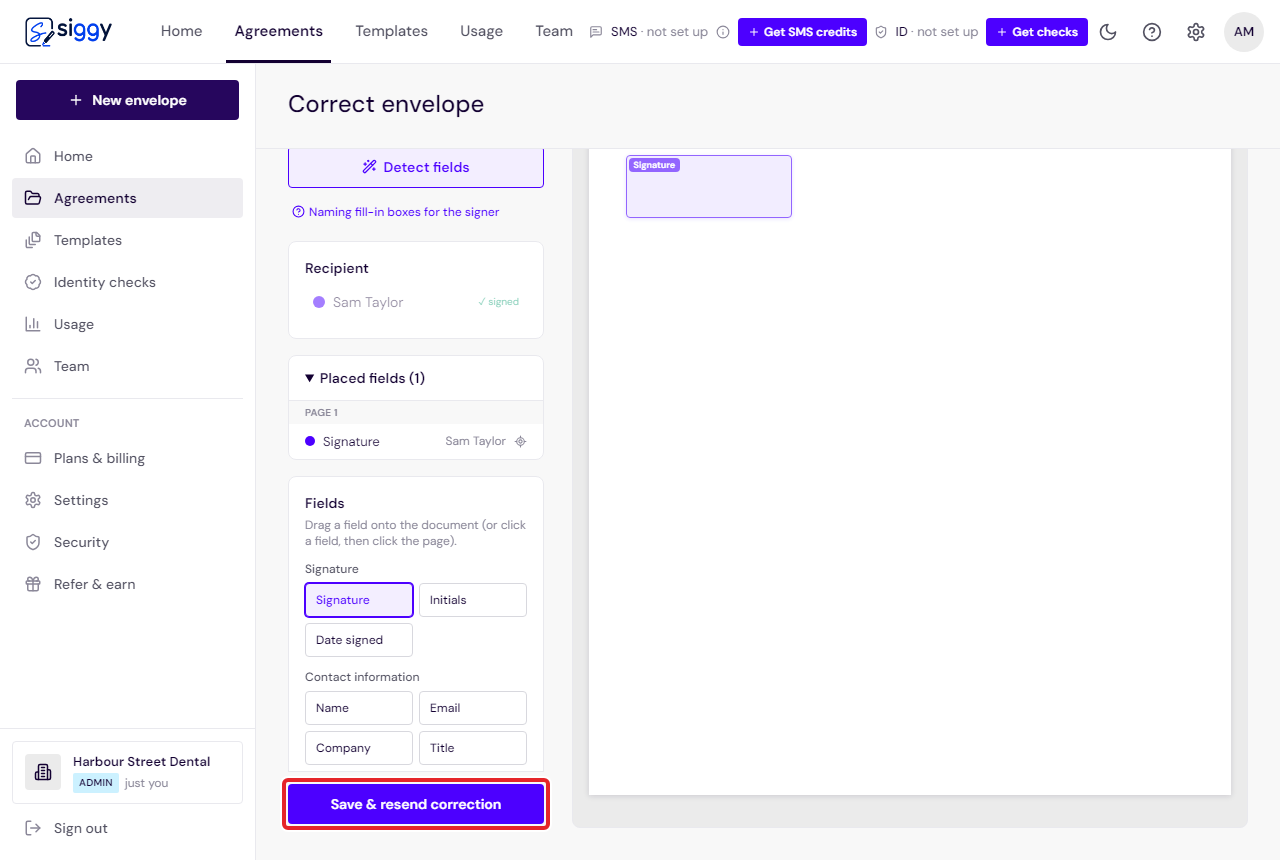
Save & resend correction - 5
The signed copies go out
- Click Agreements, then Completed, and open the envelope. It lives there now.
- Within a minute or two, Download sealed PDF and Signed + certificate appear.
- Everyone who signed is emailed their signed copy automatically, and so are you.
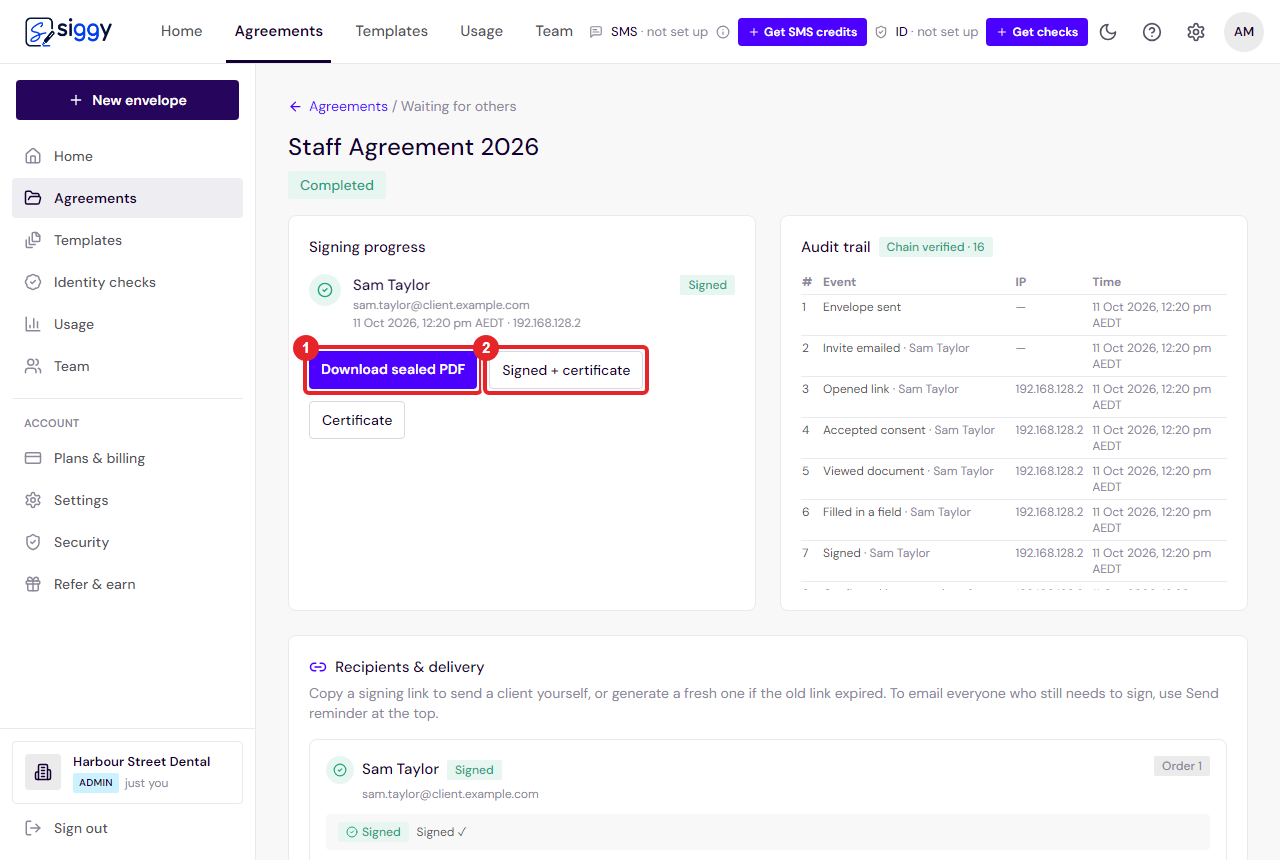
1Download sealed PDF2Signed + certificate
Good to know
- If the names were simply wrong, Correct also lets you change a pending person's email, or add someone new.
- To avoid this next time, see One envelope or many?.
Related guides
One envelope or many? Who should go on an envelope
An envelope goes to everyone on it with the same documents, and completes only when they have all signed. Here is how to decide, and what to use instead when each person needs their own copy.
Open the guide ›Send your first envelope
Upload a document, add the people who need to sign, place the signature boxes and send. About two minutes, start to finish.
Open the guide ›Still stuck? Email [email protected] with the envelope's title and we will sort it with you.